
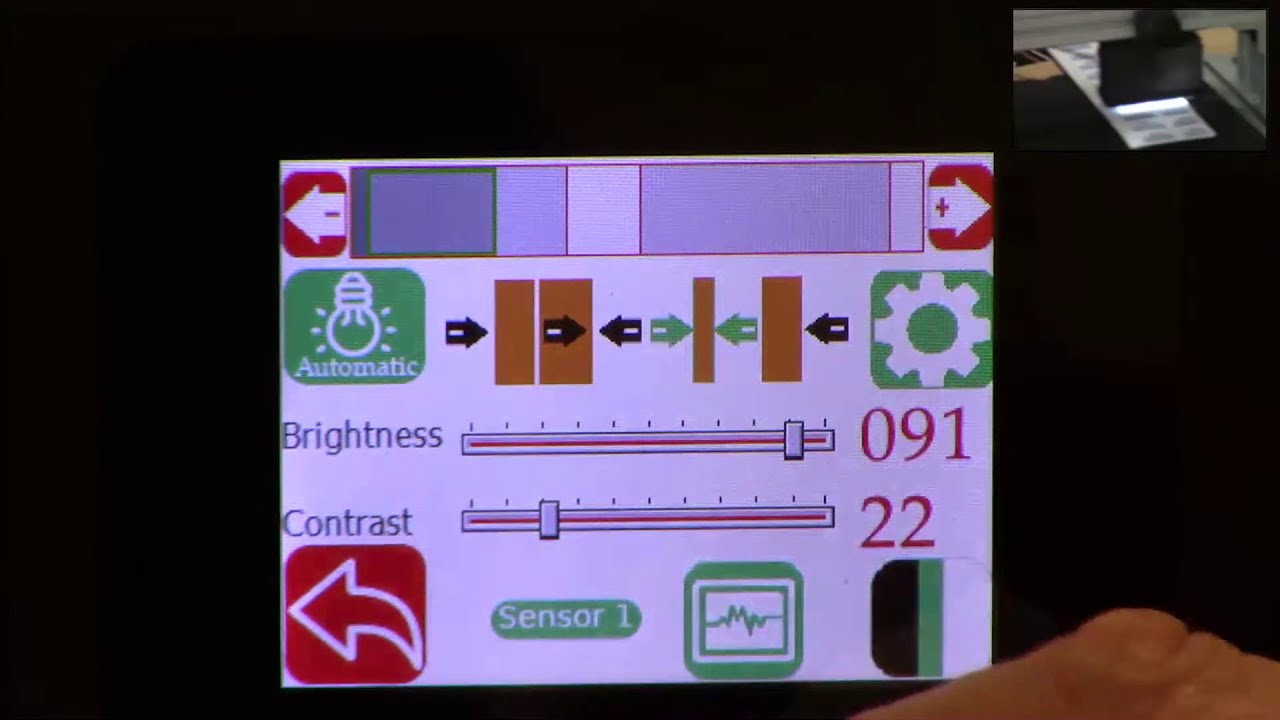
Roll-2-Roll Technologies' SCU5 Controller and Sensor system allows converters to use the contrast mode for line guiding in a few steps. This video shows how to teach the controller to tract a specific contrast for web guiding and monitoring. In additional videos we will discuss specific applications for contrast sensing that allow your converting operation to run more efficiently.
Transcript
Show full transcript (542 words)
today we're going to go through the operator sensor screen in order to teach a contrast sensing application when dealing with contrast sensing the operator will have to access the operator sensor screen on the su controller access is achieved by pressing the tool icon on the operator interface screen the next screen will be the advanced settings menu the screen has a keyboard and three icons the return to main screen icon the operator sensor settings icon and the operator power user icon by pressing the operator setting icon this will have access to the operator settings screen in the operator settings screen we press the operator sensor icon pressing this icon gives us access to the operator sensor screen this screens allow the operator to select a sensing mode to select a sensor to teach to adjust for brightness and control to specify the brightness control the thresholding mode and to select the type of contrast sensing that best suits our application verify that the sensor selection button has the correct sensor in this case we have set sensor 1 for this demonstration if we press again we would have sensor 2 but it is not connected so we return to sensor 1 by pressing that icon typically when you're doing a contrast sensing application the sensor should be a white light sensor as shown on the embedded screen view on the upper right next verify that the sensing mode is correct the sensor mode button should show three vertical spaces black green and white if it's black and white it is in edge sensing mode so we must press the icon to change to the contrast mode to teach the contrast sensing mode press the teaching button so it is green the screen will show the different contrast modes available depending on the application required press the sensing mode that best suits the application when you press the sensing mode desired the arrow or arrows pointing to the mode selected will turn green as i show right now next select the feature on the live process image preview which is this bar right on top that is to be detected to select a feature use the feature navigation keys or either side this will allow you to move through the different features and it will highlight the feature with a green outline once this is done where we have selected a feature then we press the teaching button icon and it will turn red therefore locking that feature all the contrast buttons will disappear except for the contrast selected this contrast has been set through the teaching mode we return to the main operator screen by pressing the button the bottom left hand side of the screen until the main operator interface screen appears in other videos we will discuss the specific advantages of our sensor technology for contrast sensing and we will show other contrast sensing features that can be of use to your operation now if you found this video useful like our video and follow us on youtube also you can go to our webpage at r2r.tech and contact us to discuss your own application and receive more technical and application information regarding web guiding and monitoring