

This video show how to launch the web dashboard on the SCU5 controller. This dashboard is enabled by a built-in web server on the SCU5 controller. And the dashboard is only available with the following industrial ethernet protocols:
- EtherNet/IP
- PROFINET
- Modbus/TCP
For more information about SCU5 controller please visit: https://r2r.tech/products/roll-2-roll-controller
Transcript
Show full transcript (1238 words)
hello everyone today we're going to look at how to connect our scu5 controller to a laptop or maybe a computer without the need for any PLC programming we have the ability to connect to our controller and have a quick snapshot of what the sensor is seeing and look at various parameters that are coming out from the controller we call it a web dashboard and this one is available so that anybody trying to planning to use our system with the industrial ethernet output on it they'll have a quick way to prototype and quickly connect our system to to a computer and see that everything is functioning as expected before they start writing the PLC programming that's what we're going to show today how to do it and for that I have a setup here with two sensors in this case we're just going to use One sensor at this time so we got a couple of sensors connected to our controller and here's our controller and then we'll show how we can look at the IP address from this controller and how we can connect it to a computer and we'll show that in a little bit okay so we're going to first set up this controller for the proper app in this case we have Sensor 2 connected and the sensor is actually looking at both edges of the web so we're going to set that up for width measurement application so go in the tools power user sensor and I'm going to disable sensor one and then enable sensor 2. this is a WPS sensor so we're going to toggle that switch as well and then set this to Center mode and another way we have it set for Center mode the next step is to make sure that it's set to width so we're going to go into the analog output and then width as the option and now it should show the web um with the center line and also shows the width of the web now in order for us to make sure that we are able to get this data through Ethernet before we connect to a PLC we can do the quick connection to our web browser in the dashboard and for us to do that we need to make sure that we have the right network setting and then make sure that the computer is connected to the same network so in order to do that go into tools power user communication get the IP address of the device in the subnet and Gateway if we need to change these settings we can just change the settings you can refer to one of our previous videos where we showed that and once that is done what we can do is we can go to the computer and open the web browser at first we need to make sure that the computer is on the same network we can do that by going into the computer settings what I'm going to do is I'm just going to go into control panel and then click on network and then we can click on the the network settings here and in this case we're connected to the Wi-Fi and the Wi-Fi in order to find the IP address for that Network you can go in and type in command prompt and then be config slash all so this particular network is connected to the Wi-Fi is connected to 192.168.1.1 which is the same Gateway that we had connected to in the su5 controller so we're all good all we need to do is to type in the IP address of our controller that's 192 168 1.100. and now you should be able to see the dashboard so the dashboard provides you with the real-time information on what the controller is seeing so you're seeing the width displayed here we have connected to the Sensor 2 and that's what it's showing Sensor 2 Sensor 2 is set in Center mode so both left and right Edge are enabled this particular sensor WPS 112 has got 896 pixels 127 Micron and that's what it's showing here and then it's also providing you a width output right here and the width output is 53.34 millimeters now this dashboard like I said it's just a quick way for us to look at the parameters from the system from the controller and that data that goes into the ethernet we're able to quickly view it and this way we can test the system make sure that it works as it's supposed to work before we even need to start programming anything for example if I go into our controller and oops if I go into the controller and then change some of the settings for example instead of this being in automatic I can put it to freeze and go in here and change the thresholding method and if we put it to static and if you come back to the web dashboard you can see that now the thresholding is static and if I change that to Dynamic then you can see that it automatically changes that to Dynamic the dashboard is just a way for us to see the data it doesn't allow us to set parameters on the controller this is just in Denver for safety purposes but a quick way for us to look at all the information that is coming from the system we also provide an ability to log this information if you are if you want to collect data for some extended period of time and then see how the data looks like you'll be able to download the data and it downloads it into a CSV file and you can look at all the parameters I think there are like 20 or 30 Columns of data that comes in and if you want to set it up to download the data automatically then what you can do is you can just click on this and you can select how often you want to download the data and you can also select how many data points per second do you want to collect for example I can say I want to collect four samples per second and then download the data every 30 minutes and just to show you how that works I'm going to set it to one minute and as soon as one minute expires it's gonna automatically download that data into a file and we can also set up Automatic download options and folders where we can download it this information is just available in your web browser settings and that way you can let the system collect the data automatic at the frequency that you have set and and then you can just come back later and then look at the data and do it so as you saw it just downloaded this next set of data there in the file itself has the date and time and all those information there so you can go back and look at that that's a quick overview of the how to connect to our web dashboard if you have if you are through a network in the next video we're going to see how we can connect it to a computer directly without a network thank you for watching And subscribe to our channel for more informational videos about our product
How to Find IP Address of SCU5 Controller with a Hilscher Module while DHCP is Enabled
Transcript
Show full transcript (904 words)
hello everyone this is aravind say shadri from Roll to roll Technologies today we're going to talk a little bit about the IP address configurations on our controllers we do provide industrial ethernet option for our scu5 controller and we support multiple different industrial ethernet protocols like ethernet IP profinet ethercat or modbus over TCP but in this video we're just going to look at how we can set the IP address for our controller either doing a static IP address or setting up a dynamic IP address and then how do we find the IP address of the device either through the controller or through the network and then how do you configure the IP address through a network IP address configuration tool that's what we're going to look at today we have our controller set up here in this particular one we have the scu5 controller with Hillshire internet module so you can find the the type of module and the type of controller that we have by going into from the home screen if you just click on tools power user and then communication this brings up the screen where you can see the device configuration so we have an ethernet IP industrial ethernet protocol and there are a couple of vendors that we use for that one of them is Hillshire and the other one is HMS so this one we have a hillshare and it also shows that the ethernet is on the DHCP is off and the FTP is off most of the time we don't need to change any of these settings when it says that the DHCP is off that means that we have the static IP address connected or set for our controller and the controller actually shows what the IP address right now is it's 192 168 1.100. now in case you want to find this IP address through the network our controller is actually connected to a router it can be connected to a router or a switch or anything like that we just want to make sure that if you are connected to a router that the Gateway is set properly for that router's Gateway if you want to Now search for this controller from your computer if you know the IP address of the device you can directly type it in to your web browser and 192 168.1.100 and if you if we have good connection it's going to bring up our dashboard and you can see this but what happens is that sometimes you might not have it set up as a static IP maybe it's a DHCP we'll just go over that and show you if you have a DHCP set how can you find the IP address of this device so I'm going to switch back to my controller if you want to set the IP address to be dynamically generated by your network device all we have to do is that set this DHCP to be on and then press set when we have a hillshare module when whenever we change that configuration it's going to force the controller to power cycle and that's what happened right now it is power cycled and you go into the screen again tools power user communication and it's going to show that the DHCP is on but as you can notice all the IP address subnet Gateway everything was set to zero we do know that there is a module just because of the fact that the MAC address is visible and then the ethernet IP and the hill share these are all visible that tells us that we have the module there but we just don't know what the IP address is if we run into this case we can use a network scanning tool to be able to find the IP address I have this already installed on my computer and I will switch to the computer and show you how we can find an IP address of this device this particular module is a health share module and hillshare has a tool called ethernet device configuration tool and I'm going to click on that it's going to open that up and then I'm going to search for the device and now it actually found the device and it's telling us the IP address of the device and this is our device scu5 you can notice that the IP address didn't change it it remained as 190 to 168 1.100 but again it could change to whatever IP address the network router is going to give you so it may not be the same as the static IP address again if we want to make sure that uh it's it's actually detecting the device over the network but you can also bring up the dashboard and type in 192 168.1.100 and this is going to show you the um the data coming from the device and obviously if we have something in front it's going to update that as well so that's a quick way for us to find the IP address of our Hill share module if we set it up to DHCP we'll also look at how we can find the IP address of the Animus module in another video but please follow us and subscribe to our channel so that you can take a look at all the informational videos that we provide thank you

This video shows how we can set the static and dynamic address of the SCU5 controller with the HMS module. This is slightly different from the Hilscher module. For more information about the SCU5 controller please visit: https://r2r.tech/products/roll-2-roll-controller
Transcript
Show full transcript (529 words)
we looked at how we can change the IP address of the device using our Hill share module in this video we're gonna take a look at how this can be done if you had one of our HMS modules for the ethernet IP so I'm going to switch back to my controller and the tools icon and then power user in the bottom and communication the difference that you're going to see is this this says HMS that tells us that we have a HMS module and in this case whenever we do change from static to Dynamic IP address we're going to turn on the DHCP and press set unlike the hill share module the controller will not power will have to manually power cycle this for this to take effect so we're going to do that by just going to the home screen and then hot unplugging or power cycling the controller so we're manually doing this not doing automatically once we power cycle it then you can again go back into the tools icon power user communication and now it's going to show the IP address of the device the main distinction with the Hillshire and the HMS when you have DHCP turned on is that the HMS module will actually show the IP address the new IP address that is given to this device by the router whereas in the health share these all of these three values are all going to be zeros it'll just show you the MAC address that's the main distinction now if we want to again turn it back into static IP address what we are going to do is set that to off set it refresh it and then we're going to power cycle it again physically we're power cycling it this is just to make sure that the device gets that hcp to be off and then we can go into the tools again power user communication and do the same thing of changing the IP address so we can say 1 92 168.00 one and one zero one and then set refresh when we hit refresh in this module it will go back to the old AP address so that's the reason why with the HMS you do have to manually power cycle it every time so we're going to do that power cycle it and then we actually set the IP address to 101 and once the power cycle is done go into tools power user communication and then the new IP address is 101. now you set the AP address either manually or through DHCP with the two different modules that we have Hill share and HMS whenever we change from one to another with the hill share there will be a power cycle with HMS static or dynamic there won't be a power cycle automatically we have to manually do it and that's the difference in the next videos we'll look at few other things of configuration with the profinet and ethercat but please follow us and subscribe to our channel so that you can take a look at all the informational videos that we provide thank you
How to Set Static IP Address on SCU5 Controller with Hilscher Module
Transcript
Show full transcript (397 words)
now that we have seen how the DHCP Works let's go back to our controller and look at how we can set the static IP address so if we go back to the controller and hit the tools icon and power user communication now we want to set the static IP address of the device what we are going to do is we're going to turn off the DHCP and then press set again it's going to do the power cycle because whenever we turn off the the hcp it needs to power cycle to get that setting and if we go back into tools power user communication it's going to show an IP address and this IP address is the last IP address that we set on the controller and this is again a static AP address and if we want to change the AP address what we're going to do is click on the IP menu there and type in whatever the IP address is 192. 168 0 0 1 and if we want to set it to and then we're going to press set and then that sets the IP address you might have to click it a couple of times to refresh and and now the actual IP address of the device is 192 168 1.100 again just to make sure this IP address is set properly you can switch to your computer and then type in the address on the web browser and when I type in the IP address on the web browser it shows up 192.168.1.101 is the IP address and that device is connecting and it's you can see the data coming through the controller so that's the way in which we can set the static AP address one thing to note is that anytime we change the state from static to Dynamic with our Hill share module we're going to have a power cycle and that's normal that's that's intended for us to have that power cycle this will not happen with a HMS module with an HMS module the device will not power cycle when you switch from static to Dynamic and you will have to manually do that and in a subsequent video we'll look at that as well thank you for watching and please subscribe to our channel for more videos about how to use our device how to configure our device and applications
How to Connect SCU5 Controller Directly to a Computer via Ethernet
Transcript
Show full transcript (508 words)
okay similar to how we connect the sco5 controller to a computer connected through a network we can also do something where we can directly connect the sco5 controller to a computer there is the M12 to RJ45 ethernet cable that comes that we Supply and the M12 decoded part goes into our su-5 controller and then the RJ45 we can directly connect it to a computer and I'm going to show you how we can do that just to recap again on the controller we just need to make sure that we have we know what the IP address of the device is so go into the tools power and the communication settings we have the IP address what we need to do is we need to set up the computer with the static IP address so that we can connect it through there that's what we're going to show so if we switch back to the computer you can go in and look for ethernet settings and what we are going to do is the RJ45 cable is connected and right now it says unidentified network we're going to go in and say change adapter settings and this is the hardwired network we're going to right click on it properties and then go in and select the Internet Protocol version as tcpip version 4 and then click on properties right now this is set to obtain the IP address automatically so we're going to say to use a static IP address so we just need to set an IP address for this computer so as we saw the IP address for the controller was 192.168.1.100 and then the subnet is shown there and then the Gateway is shown there as long as we pick an IP address that is different than 100 we're good so that's what we're going to do we're going to type in 192 168 1 Dot 105. and then the subnets are automatically generated you don't necessarily need to put a Gateway in but sometimes some programs might create an issue so just to be sure we can put the gateway in as what the Gateway of the controller was and then click OK click close And that's about it just to make sure to check if that IP address is set properly you can just go in and do the same thing ipconfig and so what we are interested in is the ethernet adapter which is the hardwired ethernet so it's showing the IP address as 105 and the Gateway and things like that now we should be able to open the web browser and type in the IP address of our controller 192 168 1.100 and now we can connect to our controller so this is a cable directly from our controller to the computer and this is how simple it is to set it up so that you can have the communication between the controller and a computer thank you for watching please subscribe to our channel for more information about our products and how to use them thank you
Transcript
Show full transcript (3927 words)
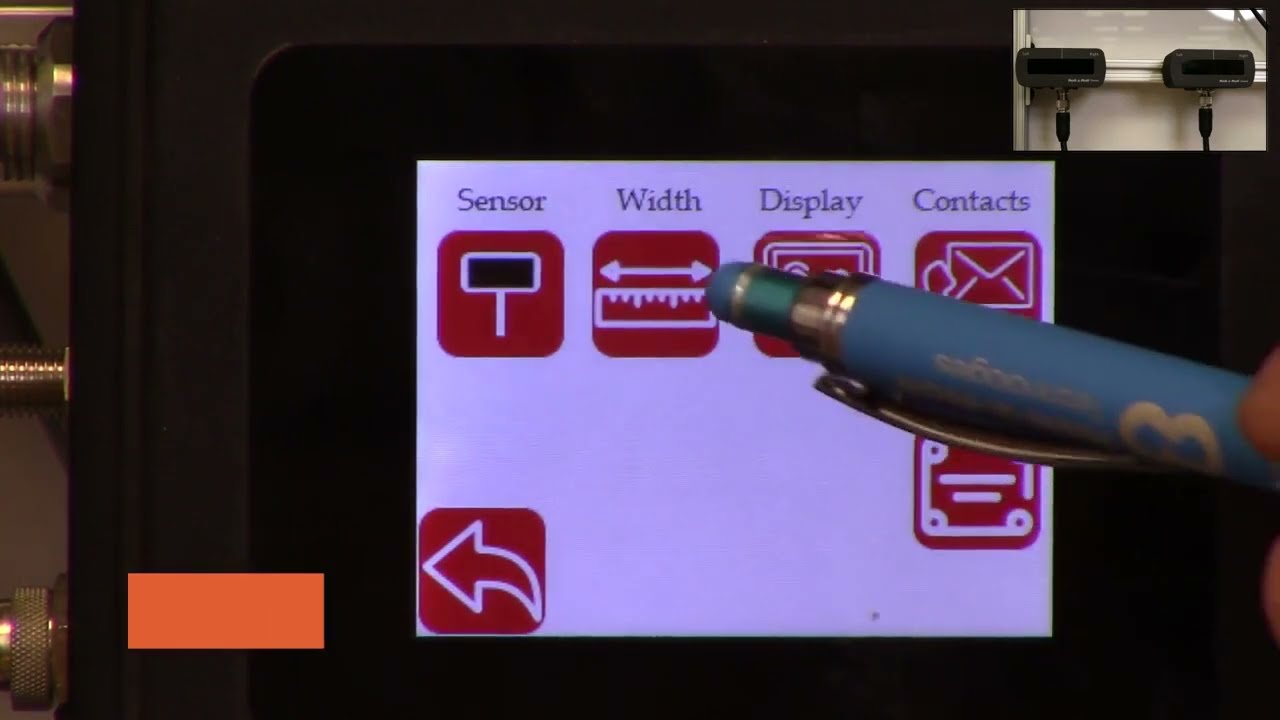
hello everyone today we are going to talk a little bit about the web width measurement application and how we can use the scu5 controller to measure the web width and also use another plc to collect that data log that data and also save it in a csv file on a usb thumb drive in order to do this what we're going to do is we're going to first set up our se5 controller for width measurement mode and then we also offer the rti which is the plc which has a special program that would actually talk to the scu5 controller and then allow the user to connect a usb drive to the plc so that the data can be logged automatically in the plc and the communication between the plc and the sco5 controller is being done through ethernet ip and then the user also has the ability to set up lot numbers so that when they are tracking different product codes they can enter that and that information is saved in the usb file automatically and the plc also allows the user to start and stop the data collection based on a line signal so that the data is only collected when the web is running and when it's not running the data can be automatically stopped from data collection and then finally we can also connect that plc to a stack light directly so that we can provide the alarms for warning error and then all good signals so all of this can be done uh through the plc and that's what is shown here this is the plc that we would be using to do that the first step in this process is to make sure that we have the suv5 controller set up for web width measurement mode and then the second step is to make sure that the ethernet settings on the sc 5 controller and the plc matches and then the third step is basically setting up the parameters on the plc so that you have everything for triggering the stack light as well as data logging so those are the three main things that we are going to cover so first we'll start off with setting up the se5 controller for width measurement mode as you can see here we have the sco5 controller now ready and then we also have the two sensors up on the top right corner and we're using two sensors one for detecting each edge of the web we'll go through this process so that we can set up the controller for width measurement as you can see if a web is presented you can see that both edges of the web are seen by the two sensors and then once that is there we just need to set the controller for width measurement mode and that can be done by following these steps first we're going to go into the tools icon right here and then go on the bottom power user and then go into the analog mode and make sure that the width is selected here and when we select this as the width now the home screen now shows the width as the output the controller still doesn't know the distance between the two sensors so in order for us to do that we need to teach the controller for the width so if i present the web here it's going to give some random values there so in order for us to teach that the distance between the two sensors we're going to go into the tool cycle and again and then the top right icon is the operator icon we're going to click on that and we're going to click on the width mode and then a few things that we are going to set so that we can teach the controller for the right measuring mode first of all the output type we're going to change it to absolute and then the nominal width this is going to be the width of the product that you're going to present while you're teaching so in this case the width of the product is approximately about 5 inches so i'm going to set in 5 inches right there and you can use this icon to change that and then the upper limit and lower limit it does not matter for this application because we're going to use the data raw data through ethernet to take care of that so we don't have to worry about that and now at this point all that we have to do is to present the web and then teach that while the web is presented so that's what i'm going to do right now so once we present the web and the teaching is accepted now we can go back to the home screen and now the controller is set up for width mode with two sensors and then now it's showing you the absolute width of the product as we move the web when the weight changes you can see that the width of the product also changes so the next the second step is that now the data is being collected in the scu5 the data is sent through the ethernet it's not being logged so in order for us to log that data we need to be able to set up the network parameters so that we can take care of these so the second step is to make sure that the network parameters are set up the easiest way for us to find out what is the ip address of our device and also set the network parameters is through the operator interface directly so we can do that by going into the tools icon the power user icon and then go into the communication we want to make sure that the ethernet is on as shown here and depending upon your network settings you may or may not want to have the dhcp on and then ftp on that really doesn't matter for this application if a network device is present then the controller will actually show the type of industrial network that is here and this is called ethernet ip and for in our case ethernet ip is the type of industrial network that we are using depending upon the firmware version you might have something here that says what type of module that we have we have two types of modules hms as well as hillshare depending upon what module you have that will show up if you have a older version of the firmware let's say version 3.6 d or maybe even 3.6 a then the type of module will not show up there the ip address of the module is shown here the subnet mask is shown here the gateway is shown here and then the mac address is shown here if you want to change the ip address of this module then you can just press this ip button and then type in the ip address that you want to change so i'm going to say 192 0 0 and 1 100. this is just for illustration purposes i actually put it as 2.100 if you want to set this you can press the set button to set it because i set the ip address wrong so i'm going to go back in and put the right at the address so again press on that one ninety two one sixty eight zero zero one and one hundred once we do that we need to press the set at the address to have the ip address set based on what you have entered and then if the ip address is different than what you had before you can hit the refresh button just to be sure that the controller has taken the ap address in some of the cases we might have to restart the whole controller especially with older firmware we might have to anytime we make a network change we might have to restart the power cycle the call controller with the newer firmware and the chip that we have we don't have to do that but likewise you can do the same thing for the mask and gateway and then if you have a controller or network where you are setting the dhcp then you would turn on the dhcp and anytime you turn on or off the dhcp you do need to power cycle the controller but essentially that's the easiest way for us to set the ip address the network information and also to view what controller or what module that we have on this particular controller there's also ways in which we can set these network information through a computer we're not going to talk about it today but this is the easiest way in which we can set this up now the second step in in this process is once we have this set up now we're going to go to the plc and make sure that the plc has the right parameters for communicating between the seo 5 and this controller the easiest way to make sure what the plc network information is and what the ip address for the plc is is done by actually pressing on the top left and the sorry the bottom left and the top right corner of the plc several times okay once you have that then you can go in and click on the offline so once you get into this offline mode you can also ensure that the ip address for the plc is set properly and make sure that it matches with the network information on the su-5 controller you have the ability to connect the suv5 controller to a managed or unmanaged network likewise you can do the same thing with the plc or you can directly connect the plc to the sc 5 controller without going through a switch if you do that what we need to make sure is that the network information on the plc matches the network information on the sco5 controller and then plc has a distinct ip address compared to the sco5 controller and then the plc also knows the explicit ip address of the seo 5 controller so in order to check all of these things what we can do is we can go into the offline mode as shown here once you are in this offline mode we can go into the main unit and then click on the ethernet and then click on the lan and now this shows the information for this plc so this is the ip address subnet gateway for this plc we just need to make sure that this information is similar to the information on the scu5 controller so let's go ahead and look at that c5 controller communication and the ip address for the se5 controller is not the same as the plc which is what we want the subnet mask matches the gateway matches and then if you compare that with the plc has an ip address of 10 the sg5 has an ip address of 100. so once that is done we can go back into the peripherals and then look at the device plc settings ethernet ip and then go into that device and this is actually the device that we are trying to connect in our case scu5 so that ip address of that u5 matches the ip address on the plc now we have set up the plc and the se5 with the right network information so that they can talk to each other okay once we have all the ap address set up now we need to go into the steps that are necessary for data logging and also to start the communication first and foremost what we want to do is we want to make sure that the communication between the plc and the sg5 controller is going properly and for that we're going to go into that communication screen and then right now it says the ethernet ip is actually off so let's go ahead and turn it on now the ethernet ip is on if you don't see any error messages then it means that the sg5 controller and the plc is communicating properly just to show you what happens if it doesn't communicate i'm going to remove the ethernet connection from the se5 and you can see that there will be an error message that will show up saying that the tcp connection is lost or things like that so if you see that error message that means that the either the device is not set up properly to communicate with the seo 5 controller and this would be the error message that you would see um and it shows that that's not the plc it's basically it's not able to connect to the sco5 controller so as soon as we connect the cable back this error should disappear within a few within a minute or so and then yeah likewise now it's communicating with the plc with the suv so once that is set up so when you have a web in front now this should provide you the width of the web on the plc but it's also showing that width on the su-5 controller so in order to change the units what we are going to do is actually go into the setup screen and then go into the other setup as well and then the units are here you can set that to inches even though scu5 may be set to inches the plc can be set to another unit irrespective of what the unit of the scu5 is and in this screen you can also change the language currently we support english and spanish so if you press spanish it's going to go to all the icons would change to spanish and then if you want to set things back to english then you can do that so this is where you would set the units and you can go back to the home screen and now if we present the web now the units would be in inches just like what the sc5 is now we know that the sco5 is communicating with the plc and then you are able to see the data now we can add more things to it so as you can see on the home screen there are the three lights that are available these are the three digital outputs so in order for us to run up a stack light what we do is we take the data from the scu5 and then use the recipe or the settings that are there on the plc so that you can set up upper limit and lower limits for the alarms and warnings that way you can connect it to a stack light and the stack light would go on based on that so in order to do that we're going to go into this screen and then go into the width setup and we can set the upper limit and lower limit for the alarms and all the units are going to be in the respective units for the alarm and as well as the width so the first step that we want to do when we are in this which setup screen to trigger the stack light is to set up the nominal width the alarm warning and all this information so in our case we have set the nominal width to 5 inches but if you want to change it to some other value you can just press that button upper limit and lower limits for the alarm and the warning doesn't have to be symmetrical so it can be asymmetric the alarm value should always be greater than the warning value uh that's the precondition when the width value exceeds the alarm value or goes above the upper limit of the alarm value or goes below the lower limit of the alarm value then the red light is going to be indicated and then likewise if it's in the range for the warning it will be in the amber and then if it is within the nominal width that's going to show the um essentially the green so once we have it set up we can go to the home screen you can see that right now the alarm is enabled and then when the width is within the nominal range you have it as green and then if the width changes to some value that is outside those limits amber and then if it's really off then it goes to red and that's the way in which this works now you can also plot this data so you can see that in a real time graph it's going to show you the the limits for the width as well as the limits for the alarm showing that in red so you can have a visual indication of how it's been doing starting with the graph like that now that we have set up these alarms and warnings and stuff like these are not used for data logging purposes but these are just for triggering out triggering the stack in order to lock the data you can start logging by connecting a usb and if you want to have some lot information you can go in and press that and enter your lot number so that when we log the data that lot number is also allocated there so in order to log the data we need to be able to connect the thumb drive there's a usb port underneath the plc that we can use to connect that thumb drive so i have an extension cable here so i'm going to connect the thumb thumb drive through an extension cable but as soon as we connect that thumb drive to the plc there should be a blue icon that appears in the bottom right as you can see in the bottom right hand corner that icon appears and if you want to take a look at it go inside right now it has disappeared but that lets you know that the usb has been recognized and connected to the device once you are ready with that what we can do is go into the plc and start data logging so we have the web here and we have presented all the uh the settings for the upper limit and lower limit and all those kind of things so since they're all set up right now we can go ahead and start collecting the data and when the web is there you can see that it's measuring that we're going to go away and then communication data log now it's saying no data logging is being done so in order for us to do the data logging i'm going to start and now this is started data logging the remote data log is off right now but if you want to have a another interface or a signal that would tell us when to lock the data i went to start i'm going to stop then you're going to enable that if you want the operator to start and stop the data logging then you can just go here and do it since the logging is being done it says logging data on the top left hand corner and then once you're done data logging you can just press the stop button right there and then if you want to remove the usb you can safely remove the usb by pressing the top and the bottom just like what we did before and then now it shows up the usb icon at the bottom there so we're going to click on that icon and then say remove usb storage device and press yes on it and then the storage device has been removed successfully because that icon on here has disappeared now you are able to disconnect the usb thumb drive and once you connect it to the computer then you have the ability to take a look at the data so let's do that next okay we're going to switch over to the computer screen now the usb is connected and you can see that the thumb drive has been recognized and it shows the different files that are there so today is the 25th so we have that file right there showing the 25th and if you double click on that file you can see that it has collected the data the lot number has been assigned and then you also have the sorry about that you also have the width data that is being presented here as you scroll down okay as you scroll down you can see the actual width measurement that was done so right now the time scale is about in this particular program it's about once per second so the width at that time was 4.735 inches and the units is basically the same units that we have on the controller so if you had units the unit shows up and if you have inches it shows up the lot number shows up and then the time when it was recorded and then the date when it was recorded so that's as simple as that to be able to log the data through the rti plc um in from our scu5 controller one other feature that we have is that we also have the ability to provide some recipes the recipes are used when you are running different web with products and you don't want to change the nominal with the alarm and the warning information every time you change the width you can create your own recipes and that's done here and um anytime you want to load a recipe you click on that product product number and then you're going to press load recipe and whatever that value is going to be loaded it's going to be displayed it will not be presented or pushed to the home screen until you press the accept so now once you press the accept that value is being loaded anytime you want to save a new recipe you're going to go in there press on load and then press the values for those so if i want to change that nominal width to 5 inches i'm going to enter that nominal width and then the all the other settings are set now i am happy with this recipe so what i'm going to do is i'm going to save that now product one every time we go to product one it's gonna have the five inches so we go back to product two load that recipe that shows up there and product one come back here and load that recipe now it's five this is just displaying it so if you want to push this to the home screen you still need to press accept and we're gonna do that now if you go back to the home screen that's gonna show you that the new alarm and warning signals and you can see that here if i present the web you can see that it's good now and it's an alarm now i think so that's essentially it

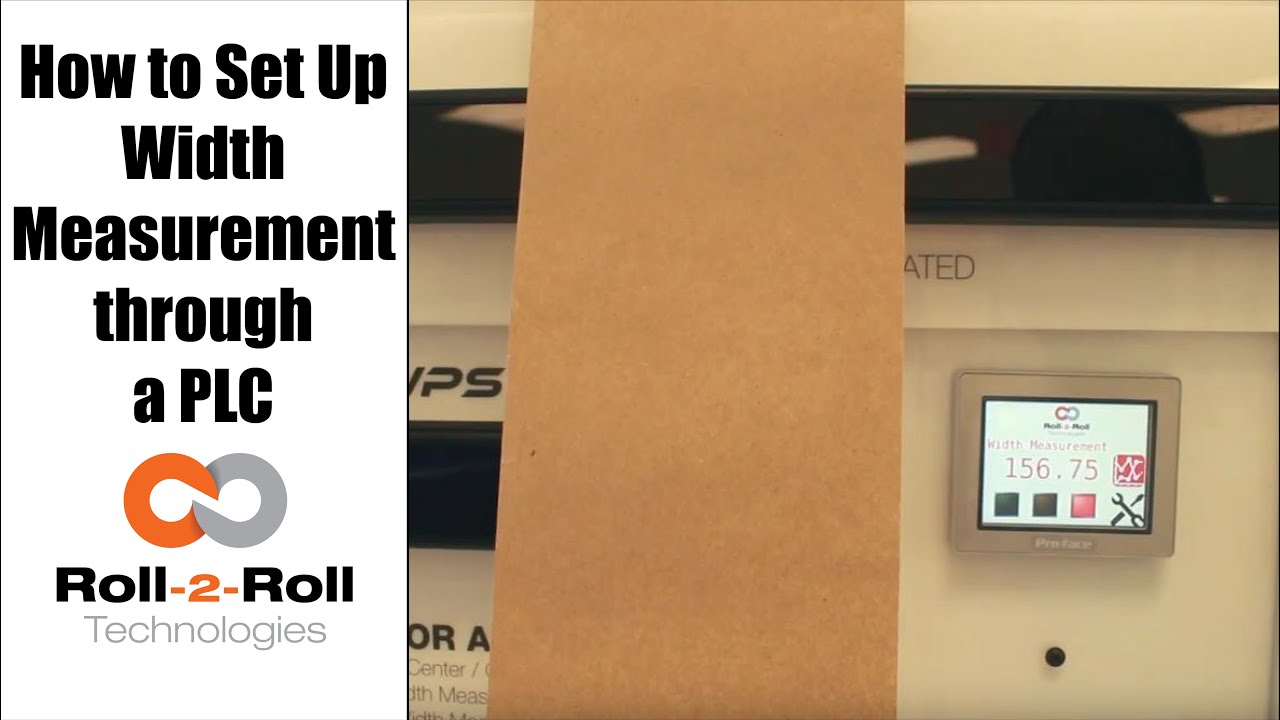
A programmable logic controller (PLC) or programmable controller is an industrial digital computer which has been ruggedized and adapted for the control of manufacturing processes, such as assembly lines, or robotic devices, or any activity that requires high reliability control and ease of programming and process fault diagnosis.
In this case, Roll-2-Roll Technologies programs the PLC for web width measurement in converting operations.
Transcript
Show full transcript (687 words)
okay this is a short video about how to set up the width measurement sensor now the first and foremost thing is the sensor has to be connected to the power supply and to the Ethernet and then a cable goes into the PLC and power for the PLC and for the Ethernet as soon as we tried a new web we present the web take a look at the documentation on our website to say how far the web needs to be with the sensor but once you have that ready we can go into this settings screen and then go to wit setup this is where we would go in and set up what is the nominal width so whenever you start a new job you can probably measure the width of that in this case I've already done that it's 153 millimeters so I'm gonna go in and set hundred and fifty three millimeters that's my limit and then we're gonna press record wait it's going to save that as the correct width we can also set alarms and warnings so depending upon your application so in this case we'll go ahead and set an upper limit of one millimeter for an alarm lower limit of one millimeter for the alarm and then about 0.5 millimeters on either side for the warning these ranges are the ones that are going to trigger the stacked lights so whenever the web width is within the nominal width which is 153 millimeters in this case then you'll have the green light enabled and then when it goes about by about 0.5 millimeters you're gonna have the amber light enabled and then any time it goes about one millimeter you'll have the red light enabled so go to the home screen and you can see that since it is within the spec the greenlight is enabled anytime I go and it increases quite a bit then the red light gets enabled and if I just tilt it a little bit and the weight goes up by half a millimeter then the amber light gets enabled one of the other things that we could do is actually trend the data so as soon as you set the limits the upper and the lower limits so we set it as one millimetre so 153 is our normal width and then we have 152 as the lower limit and 154 is the upper limit and it trends the data anytime that the weight changes they're gonna be able to see that the current measurement is shown here and then a plot for about 30 seconds is shown there so that's about it so if you have jobs where you can do recipes you can go into this and you can start saving those recipes here so you can pick one of those and say load and then you can add those recipe there so you can say product one I want to put the nominal with - 150 millimeters or whatever that may be alarm is - warning is 1 and then you say safe so now that product 1 recipe is saved to that so if you want to load a certain recipe click on that recipe click on load it's gonna load that we go back to 1 and load that we got that whatever that we uploaded will go in now if you want to take this data and put it into your main screen you have to select that product and say accept then that will be the current value for the value so it automatically took that recipe and put it at 182 millimeters the range that we set alarms that he said automatically goes in there so since that's not the right one so let's just go ahead and load it and then put our current value there save accept and now we set our current weight to be 152 which is outside our limits so you got the amber light and then whenever you need to plot it we can plot that data right there so that's a brief overview of the weight measurement with our PLC's you
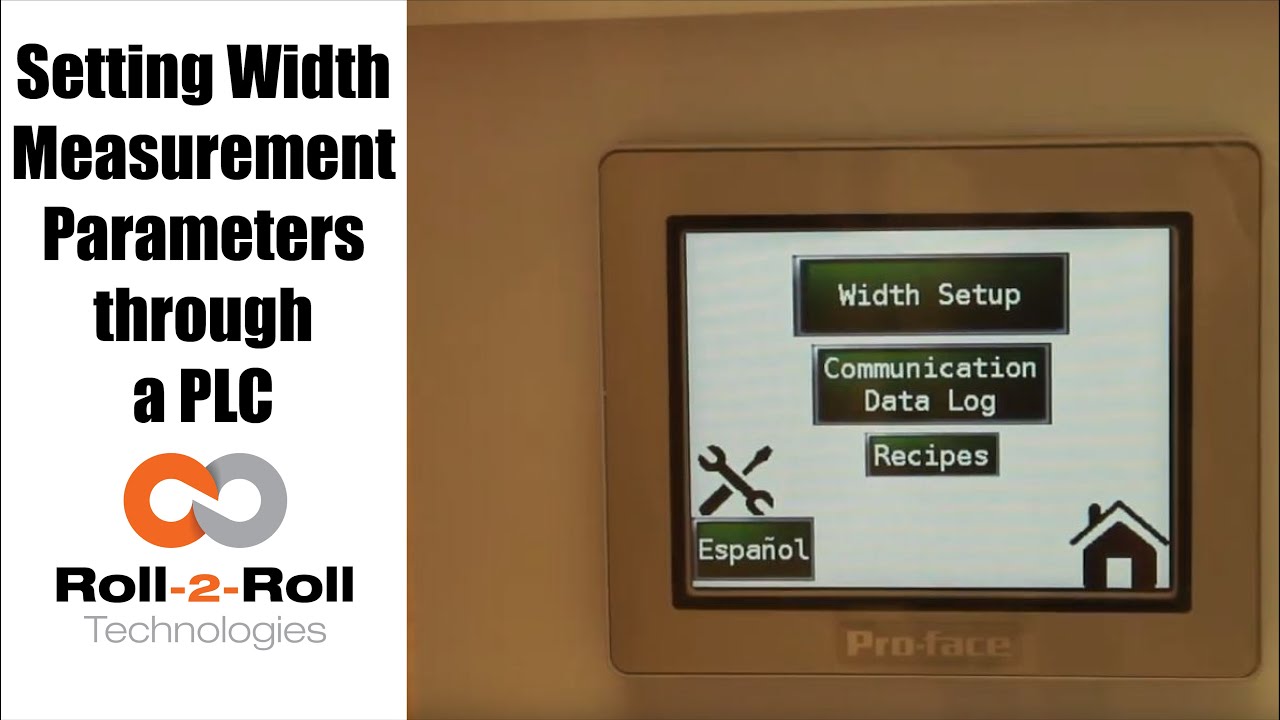
A programmable logic controller (PLC) or programmable controller is an industrial digital computer which has been ruggedized and adapted for the control of manufacturing processes, such as assembly lines, or robotic devices, or any activity that requires high reliability control and ease of programming and process fault diagnosis.
Transcript
Show full transcript (1078 words)
so in order to set up the Center for British Mint and we'll go over this menu once one more time we're going to go to the setup screen right here and then click on width setup then we can enter our nominal width the alarms the warning ranges and all those things first we want to whenever we have a new product in there we want to measure the product what the width of the product is in this case it's 153 millimeters we're going to enter 1 5 3 enter and then we're gonna set the warning to be point four millimeters so if the alarm is less than the warning the system will not accept it so the best way to do that is to make sure to set the alarm first so we'll set the alarm at 1 millimeter and there is a way for us to set a symmetric alarms so the positive range can be 1 millimeter and the negative range can be 0.5 millimeters if we want it to so in this case I'll set it at at 0.8 millimeters and then the warning range in this case let's set it to 0.4 millimeters and we have set everything what we want to do is to say hey this is the right one so we say record wait what it does is it teaches the sensor to say hey this is the nominal width we're looking for and I have presented the web with the right width and it'll take the measurement from then on so if you go back to the home screen it's going to show you the measurement and as long as it's within the range you're gonna have the green light whenever it goes to the warning limit it's gonna go to Amber and then whenever it's about the alarm it's gonna go to the red light these are actually also triggering a digital output on the PLC so we can connect a stack light with three outputs so connect the red sorry red amber and green to the three signals in the stack light the other thing that we want to point out a little bit more is the recipes so sometimes you might not see it you just have to click on this to say display recipe so what we have provided is an option for you to save seven different product recipes you can scroll through them and let's say we want to pick up product seven and we want to use that as the recipe what you need to first do is pick that number click on load and it's going to load the data here right now it doesn't have anything so let me go to one which has something ok so now I loaded product 1 and it had some values there so we'll have to load it once you load it it's loading is just for display purposes you need to press accept to accept that recipe so that it will be sent to the front screen for width measurement in this case I want to make sure to make some changes if you want to make the changes you can directly click on that width value and I'm going to enter 153 and then alarm as one date and then warning as 0.5 once I enter that if I press accept it's gonna send it to the front screen if you ever change a recipe you need to make sure to save it so right now I can press save now it saves it to the memory so that means that anytime you go back to that recipe and come back to one it will retrieve that data so make sure to remember to save it so two things one is if you want to load something it loads it here so we want to do that loads it here and if you want to take this recipe and put it into the front screen you need to press accept and any time you change the recipe you need to make sure to save it so that's the thing about recipes you have an option to say about seven recipes here there is also an option to log the data as you make the measurement there is a USB on this PLC so what you can do is you can connect a USB there and click on start logging it will it will start logging the data and whenever you're done you're gonna say stop logging and it'll stop logging the data and then you can take the USB off from there there are a few other settings here that you can set up as well these are advanced settings there is an option to override the minimum contrast in our sensor the minimum contrast is used to say whether something is an edge or not in the picture so by default we have 50 so we can have that and if you want to enforce that you need to press this button so that it changes into lime green instead of dark green whenever you want to disable you press that it disables that and this is the place where you can enter the value you can also make the sensor provide the data that is already filtered so if you want to do that you turn on the filter turn the lime green turn off the filter it goes off this is an advanced feature which is called as a minimum measurement quality whenever we take a measurement we have an output called quality factor and we can set that nominally it's ten millimeter ten is the minimum quality factor now if you want to make it higher you can set that value and enter it there so as long as there is a value it's going to take this value if you want to disable that option press n zero so I press ten and enter and it'll be that that's the minimum that you can provide so this screen is more like an advanced screen your operator wouldn't really have to do this only people engineers that are setting up the system can use this for troubleshooting purposes and stuff like that and yeah that's about it so these are the features there and like we talked about before we also have the option to log the data and showing the log of the data right here you
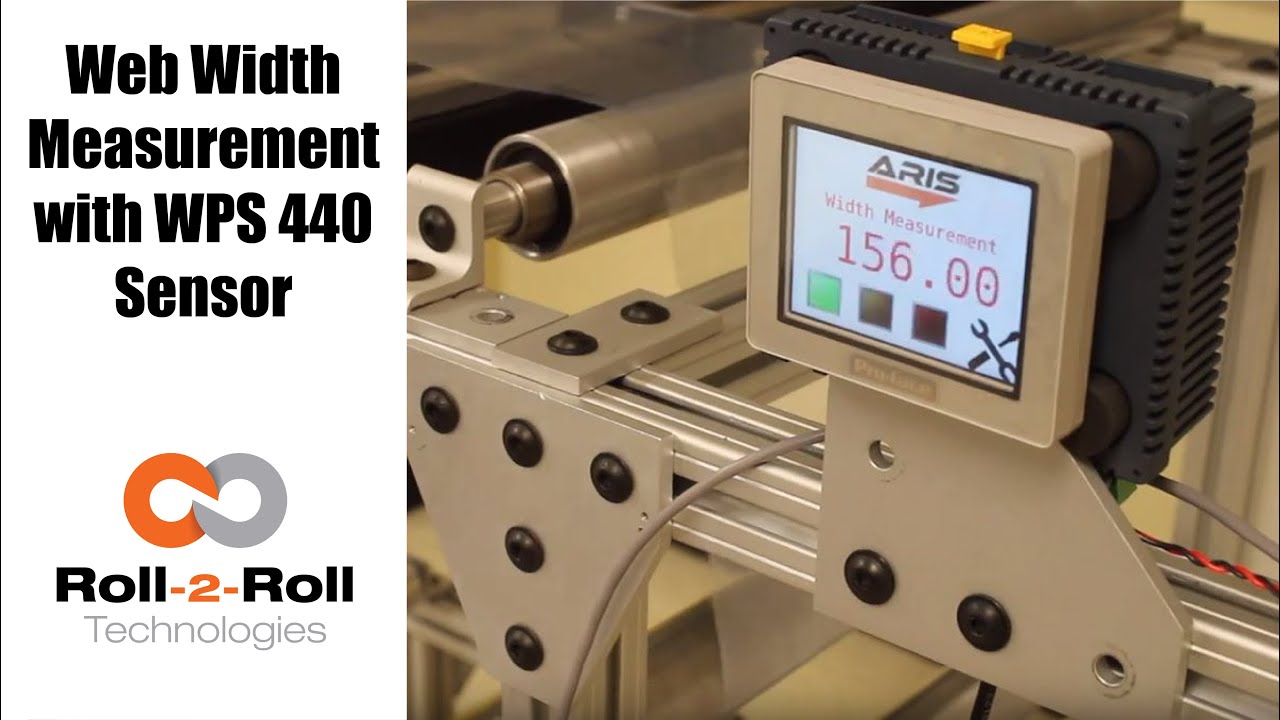
Roll-2-Roll Technologies offers robust width measurement capabilities with the WPS 440 Sensor. Using a PLC connected via ethernet, we are able to accurately measure the width of any material.
Transcript
Show full transcript (1727 words)
well today we just want to show a little bit more about our width measurement application with our 440 sensor so we have the 440 sensor installed and then you have the web coming over it we have installed two support rollers so that when the web moves it doesn't flutter too much we want to avoid fluttering whenever we do web width measurement this sensor is actually connected to Ethernet IP so you can connect it to a a PLC like this or we also have a web browser interface on the computer that you can connect to so the main things are here is how far the sensor is from the web right now we have installed it at about 5 millimeters from there that's the optimal distance that we recommend the sensor is installed facing up that is good but just to avoid any dust and other accumulation it may be better off to face the sensor down so that it's looking down towards the web a few other things that we need to consider is the the the free space behind the sensor we want to maintain about six inches of free space so that nothing in the background is seen by the sensor that's the optimal way in which we can get the best results there's also a way for us to get the maximum scattering out of the sensor if you want to do that what we would do is we will raise up this roller so that the web comes at an angle now about 10 15 to 20 degrees is the angle that we want and it depends upon the orientation of the sensor so if we if you want to get the maximum scrap scattering what we will do is we will raise up this roller so that the web comes this way but those are the few things that you want to consider before installing our 444 width measurement application other things to consider is this free span doesn't have any twisting so we don't want to install the sensor right next to a dancer roller or right next to a web guide we want to install the sensor between two fixed rollers so that we have a fixed pan and then web doesn't flutter that will be the ideal scenario what we were going to show right now is how do we get this up and running right now as you can see we have the power on to the sensor it's connected to Ethernet IP right now it's connected to a network device like a router or a switch so you can connect to the sensor through the network if you don't want to do that you can directly connect the sensor to the computer or you can directly connect this to your PLC or our PLC for that matter so just for demonstration purposes we're going to connect it to both the computer and the PLC to a network the next thing that we want to do is to connect the sensor to the PLC one of the first things that we want to do is find the IP address once the sensor is connected and powered up and connected to your network device we can pull up a utility called IP config we have information about that on our website we can go once you open up open up open up that program it will show what device there is and what's the IP address of that right now the device is said to have DHCP set automatically and it has an IP address 0 dot 0 dot 0 this is happening mainly because the Gateway doesn't match so what we would do is to make sure that they get the Gateway matches let's do that the Gateway is one one sixty eight dot one dot one and AP address of this device so right click configure on my parents one point something see you so once we do that we set a static IP address with the Gateway and everything now we can right-click and pull up a web browser and that's going to bring up our dashboard so this dashboard basically shows us several things the web measurement is shown here so this is the web in that the width measurement is 155 and something millimeters we also have a filtered width measurement we have a filtering algorithm that would take the filtered value of the raw measurement and then edge location which is left edge so that's saying where this edge is and then the right edge is showing where the other edge is and then within our software we also have what we call it as a quality factor which is basically think of it as how good of an image or how good of an edge that is so it says that the left edge has a quality factor of 300 and something and the right hand has a quality factor of 100 and something so this is a easy and quick and easy way to test our sensor make sure everything works fine we have a plot that shows the weight the measurement we also have other things that we can do with the sensor in terms of adjusting the brightness all of these are shown here so the idea the main thing that we want to do is make sure that the quality factor on the both edges are pretty high and as we mentioned before one of the things that improves the scattering is angling the sensor either we can lift this roller up or angle the sensor so that we get a pretty good quality factor so if you can notice when I move that since we don't get a good scattering the quality factor went down but if we install the sensor at the right about 15 degrees angle then we get a pretty good quality factor signal and then you get the measurement there so this particular web browser interface allows you to pan the data plot the data you can also save the data if you click on the save it stores that data as an excel file with all the information that we collect which is shown here such as the brightness and and the edge position and the width and everything so that's basically about the the web browser interface as you can see we can run the web and it collects the data as the web is moving over the sensor let's move on to the PLC and kind of show you how we can set up that PLC this is a special software that we install on it basically for customers who doesn't want to set up their own system they have the ability to use our PLC that we supply to do width measurement and also have the ability to provide a trigger measurement whenever the width varies so one of the first things that we want to do to get the PLC communicate with the sensor is to tell the PLC what the IP address of the sensor is in order to do that we're going to press these corners one after the other and then go to offline and this shows up the main screen here in the offline menu we click on peripheral and within the peripheral we're gonna select Device slash PLC setting and here we're going to use the ethernet/ip explicit messaging protocol so that's the one that we're going to select and then these settings are fine which is the standard setting the main thing that we want to set is the IP address of the device so we're going to go click on device and then set the IP address so right now it's set to 192 168 1 8 so our sensor IP address that we manually set was 192 168 1 dot 100 so we're gonna type in 100 enter and exit and then Save Changes so now the PLC is going to reboot with the new IP address we just have one more step to do to connect the PLC to the sensor or connect the PLC to communicate with the sensor and that's to enable the Ethernet communication so in order to do that we're gonna go into the settings and communication and turn on internet might be once we do that now we got the measurement from the sensor so this is the real-time width from the sensor that is going here now if the customer wants to set a few things for example if they want to teach the sensor so that we want to avoid any inaccuracy in accuracies in the measurement what we will do is we will put the web where at the location where they desire it and measure the width of the web then let's say in this case it's 155 millimetres would go in and press this 155 and press record width now they can also set warning and alarm ranges so for example we want to say alarm is for 4 millimeters warning is for 1 millimetre and going so as long as the width is within that range which is 155 we taught the sensor for that width it'll show green and whenever the width goes about a millimeter high or low the amber would show up and then when it goes about the warning the red would show up so and that's pretty much it right now we're seeing the weight variation because of the curls and all these things in the web we're trying to show or simulate some of the things that you would see when the weight varies by these curling there's also an ability for the customer to set recipes so if they have different product with you can set what is the nominal weight what is the alarm weight what is the warning with things like that you can load them you can save them and so on and so forth and also there's an ability to connect a USB here directly and save the data through the USB on this PLC right here and this PLC can be connected to an signal alarm signal lighting system with green amber and red so that it's readily visible for the operator running the machine so that's pretty much our width measurement system using our WPS 440 sensor you